Teams
A fundamental purpose of Rematch is to save teams of pets to load later without needing to remember which pets and abilities to slot.
 |
Rematch User's Guide |
 |
A fundamental purpose of Rematch is to save teams of pets to load later without needing to remember which pets and abilities to slot.
Once you have three pets slotted and their abilities chosen, you can save them as a new team by clicking the Save As button at the bottom of the window. It will bring up this dialog:

You can give it any name you want but you'll probably want to keep it to a short phrase. All teams without a target must have a unique name. If another team already has the name you've chosen, it will warn you before you click Save and confirm after clicking Save before overwriting it.
Clicking the Target dropdown box will offer your recent target, or a menu of noteworthy targets. The next section about targets will have more to say about them.
Initially there is only the General team tab to store teams. But you can add new tabs by clicking the Create New Tab button on the right edge of the window.
In all you can have 16 team tabs and an unlimited number of teams across those tabs.
If you make changes to the loaded team and want to save it, Save will write the changes to the loaded team without going through the Save As dialog.
The name Rematch is from the addon's ability to tie teams together with a target, so it can easily summon a team for a rematch when you return to the target another day.
Above the loaded pets, when you have a target with known pets, you'll see something like this:
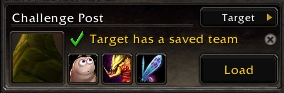
The three pets are the opponent's pets. You can mouseover them to see their pet cards to build a counter team.
The Target button in this panel will open a menu of all known tamers in the game. This is very useful for building teams in the comfort of a city without going out in the field.
Important things to know about teams with targets:
If you want to have alternate teams for a target, you can! Simply save it without a target. You can load it just as you load any other team.
The standard way of loading a team is to click it in the team list.
If you don't see the team you want or can't remember the tab it's in, the search box will find teams by name or by the name of pets within the team. For instance if you only remember that the team had Graves in it, typing Graves in the search box will find all teams that contain that pet.
If a team has a target there are a few more options:
The power of saving targets in a team becomes apparent when you have a dozen tamers in your daily circuit. With a team saved for each target, you can do a round of dailies without even opening Rematch or finding a team. The addon will automatically find and load each target as you reach them!
Rematch has a couple ways of sharing teams with others.
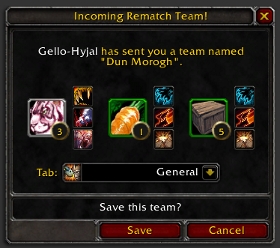
If you have a friend that also uses Rematch, you can send your team directly from the Share → Send Team option of the team's right-click menu. On the receiving end the player will see a popup like the one pictured here.
If you'd like to keep the team sent to you, click the Save button and it will save it to the chosen team tab.
The incoming team is filled with pets from your collection. If you don't have the pets it's okay! They'll be greyed out placeholders. You can keep them there for motivation to hunt down later, or right-click the pet and Find Similar to find a substitute.
Another way to share teams is by exporting them into strings from the right-click menu Share → Export As String. This will pop up a window with the team converted into a cryptic string like this:
Dun Morogh:0:440:429:492:538:200:119:162:159:72:119:162:159:
Copy and paste this string in an email or forum post. Any other Rematch user can now copy and paste this to the Import Teams dialog to save a copy of the team.
Either receiving a team directly or by import, if you already have a team with the same name or target, Rematch will give you the choice of overwriting your existing team or creating a new copy and leaving the old one alone.
After you've used Rematch for a while, you will hopefully accumulate many teams. Potentially hundreds of teams.
If disaster strikes and the game crashes while you exit, or your hard drive fails, or any number of other proofs that computers are not infallable, it's possible to lose all those teams.
The best backup is to backup your WTF folder. This is all of your addon settings, not just Rematch. If you ever need to restore your addon data, you can always revert to the last backup.
If you're not sure where the WTF folder is or how to go about backing it up, Rematch has a low-tech solution with the Export feature mentioned previously:
If you ever need to restore your teams, find that email you sent to yourself and import the teams you pasted there. Rematch can handle importing many teams at once.
If you're just starting out you don't need to worry about this. After you've saved your 50th team, Rematch will offer to backup your teams for you.
Hopefully you never have to use this feature, but it's good insurance just in case.