Pets
The left pane of the journal, or the Pets tab in the standalone window, is dedicated to managing your pets.
In addition to everything the default journal does, Rematch adds some significant improvements.
 |
Rematch User's Guide |
 |
The left pane of the journal, or the Pets tab in the standalone window, is dedicated to managing your pets.
In addition to everything the default journal does, Rematch adds some significant improvements.
The Type Bar is a pullout panel that sits beneath the search box when expanded. An arrow to the left of the search box will expand or collapse the panel.

The first tab, Type, is for quickly filtering pets by type. If you're looking for Aquatic pets only, click the Aquatic type.
Strong vs will filter the list to pets with attacks that deal increased damage to a type. For instance choosing Strong vs Magic will list all pets with attacks strong against Magic (all pets with Dragonkin attacks).
Tough vs will filter the list to pets that receive reduced damage to the chosen types. For instance choosing Magic will list all Mechanical pets.
You can combine the above to find double counters also. For instance Chi-Chi, Hatchling of Chi-Ji is a flying pet with all elemental attacks. If you select Strong vs Flying and Tough vs Elemental you'll get a list of snails and other critters with magic attacks.
Many new filters are added to the Filter button menus. They include:
If you find yourself often re-creating a series of filters, such as rares without any at max level to choose leveling pets, the Filters menu has a Favorite Filter option. From here you can save the currently enabled filters under one name and then later select the saved filter to apply all the individual filters at once.
Before moving on from filters, it's worth mentioning one change from the default filter menus.
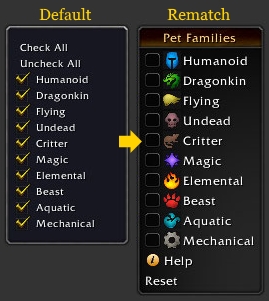
As you can see in this comparison, there is no Check All or Uncheck All in Rematch filter menus. Instead, if nothing is checked, then Rematch assumes you want to see all pets. The first item you check, Rematch will filter to only that item.
The guiding principle is that you will never want to see no pets, and 90% of the time when you reach for a filter you want to select only one subset of a group. This is a lot more natural and a lot less clicks than the default method.
If you need to check all except one item, [Shift]+Click of an item will check all except that item.
The Type Bar behavior and all lists of checkboxes in the Filter menus behave this way.
In addition to finding a pet by name, the search box will also find:
All searches are case insensitive. Bleed will work just as well as BLEED or bLeEd.
For text searches, the results will be sorted by relevance. If you search for Rat, the Rat pet will be listed at the top and all pets with Rat in their name will be listed after.
To do an exact match, use quotes around the search. "Rat" will find only the pet named Rat and none with Rat in their name; "Dodge" will find only pets with the Dodge ability and skip abilities that only add a dodge amount.
Rematch adds even more tools to manage your collection.
With Rematch you can attach notes to any pet, collected or not. Right-click a pet and choose Set Notes. It will summon a resizable window where you can type or paste information to keep with that pet.
Pets with notes will have a notes button beside their name. Mouseover of this button will display the notes as a tooltip. Clicking the button will lock the window in place so you can edit the notes.
A great use of this feature is "tagging" pets to search later. If you want to add a Nexus Whelping to your collection but don't have time to hunt one down, add #findme to its notes; and to any other pet you want to hunt when time permits. When you get some free time, enter #findme in the search box and it will list all the pets you've tagged.
If you'd like to find a pet with similar abilities to the one you're looking at, right-click the pet and choose Find Similar. Any existing filters will be cleared and all pets that share at least three abilities will be listed.
This is useful if you want to find a substitute for a pet you don't own, or to see if any other pet types share a similar moveset to counter a vulnerability.
Finally, if there are any pets that you'd like to hide completely from the list, you can hide them with the Hide Pet option in a pet's right-click menu. They will no longer show up in the list or search results.
To see hidden pets after they've been hidden, go to Other in the Filter menu and choose Hidden Pets. To stop hiding a pet, choose Unhide Pet from its right-click menu.